





- Client Application is renamed as P6 Professional (EPS, OBS, USERS and Security, etc.. are removed in P6 Professionl)
- There is no In built workflow with primavera web, we have to install Oracle BPM and need to configure with P6 web
- There are no default Reports available in primavera web, You need to install Oracle BI publisher, P6 Reporting database, BI Publisher need to configure with Primavera web, and reports will be taken from Reporting database (ODS) not from Primavera Database(PMDB)
- Methodology management Removed in P6 R8 version
- P6 analytics, OBIE and reprting database (star) need to be installed for Advanced reporting which is same like previous version(P6 V7)
Regarding to reports, in Project Management Desktop Client there's a new option to store the report in html format and automatically create a document definition linking to a public location folder. Saving this to a file server (users, folder permissions, scheduled backups, etc), allows you to view the report at WPs & Docs.
- 100% Web
- Enterprise Project Structure (EPS) View
- Templates
- Portfolios
- Enhanced Resource Analysis
- Integrated Risk Management
- New Web Based Reporting (Business Intelligence)
- Business Process Management (BPM)
- User Productivity Kit (UPK)
- Support for Apple Browser
- Lower Cost of Ownership
- No Citrix Needed
- Simple Deployment
- Easier Upgrade Path
- Faster / Incremental Releases
- Works with Mac Operating System with Safari browser
The XENA XER Import Utility allows users to view and change the coding structure of updates to match the codes in your production database BEFORE you import the data. This tool saves XER templates for reuse to avoid many wasted hours in the import cleanup process. The setup takes only minutes and templates are ready for use every time data needs to be imported providing configuration control that is easy to use and maintain. For additional information, please visit http://www.xenautilities.com and http://www.mustangtechnologies.com/index.php?pr=XENA
Global Change is a powerful feature of Primavera's P6 Project Management software. A Global Change is almost like a Microsoft Excel macro, but with some differences.
It applies the change to the entire plan and changes cannot be undone. It is best to a backup copy and save to file before committing a global change which can be used incase deciding to roll-back.
| Solution ID: prim80169 |
| How do I run the risk analysis on only selected tasks? |
| Status: Reviewed |
| Version(s): 8.0, 8.1, 8.2, 8.5 |
| Problem: How do I run the risk analysis on only selected tasks? |
| Problem: How can I run a risk analysis on only a few tasks, not the whole plan? |
| Problem: What does the ignore function do? |
| Fix: By choosing to ‘Ignore’ a task, it is temporarily omitted from the schedule; Any links to or from it are removed, and all resource assignments and costs are ignored. The task details remain preserved for future use, however. |
| This allows you to see the effect of adding or removing individual tasks or groups of tasks on the project duration, cost etc. This feature has been specifically added for delay analysis. This can be helpful to see the effects of a risk analysis with only certain tasks. To ignore a task: |
| 1. Go to Format | Columns. Add the column “Ignore Task“. |
| 2. Type a ‘Y‘ in the “Ignore Task” column for the task(s) you choose to ignore. |
| Note: To ignore a large group of tasks, you can highlight a selection, or create a filter to isolate the tasks you want to ignore. A fill down can then be used to populate the “Ignore Task” field. |
| 3. When the risk analysis is run, the task will be ignored. |
| 4. Delete the ‘Y‘ from the “Ignore Task” column to make a task active again. |
| Note: If you would like to quickly restore all ignored tasks, there is an option in the Risk Register Options to “Restore all ignored tasks before analysis“. |
|
|
| Information on this subject can also be found in the “Ignoring Tasks” topic of the Help menu. |

| Solution ID: prim80193 |
| Can resource FTEs be displayed in a histogram or spreadsheet? |
| Status: Reviewed |
| Version(s): 6.0, 6.1, 6.2, 6.2.1 |
| Problem: | Can resource FTEs be displayed in a histogram or spreadsheet? |
| Problem: | Can resource full time equivalent be displayed in a histogram or spreadsheet? |
| Fix: | To display FTEs per day, per week, per month or per year: 1) Change Edit, User Preferences, Time Units, Units Format to desired FTE time interval.
2) Change Resource Usage Profile, Resource Usage Spreadsheet or Assignments View to desired time interval. Resource Assignment units are stored in the database as hours. When profiles and spreadsheets are displayed in intervals other than hours, the Admin Preference, Time Periods, Hours per Time Period values are used to convert hours to desired time interval.
For Example, when time units are set to hour and usage profile timescale is set to week then P6 displays 40hrs/week. If time units are set to week, the Admin Preference for week is 40 hrs so P6 displays one FTE per week.
To display FTEs per Quarter: 1) Set Units Format to Month and the timescale to Year\Quarter 2) Right click lower right window and choose Resource Usage Profile or Spreadsheet Options, Graph. Check Calculate Average, choose 3 for the Divide interval totals by, and add Quarter to Unit of Measure.
FTEs per Quarter:
|


| Solution ID: prim73204 |
| Select All does not select all Spreadsheet fields in the Resource Assignments view. |
| Status: Reviewed |
| Version(s): 6.0, 6.1, 6.2 |
| Problem: | Select All does not select all Spreadsheet fields in the Resource Assignments view. |
| Problem: | Cannot copy all of the data from the Resource Assignments view. |
| Problem: | The Remaining Late Units do not copy into Excel from the Resource Assignments view. |
| Fix: | This known problem in Project Management is currently under review and may be corrected in a future release. If you would like to let Primavera know that your company is experiencing this issue, please select the “Send us your feedback and comments by creating a support incident here” link below. Workaround: Select the top node of the View, and using Shift, select the last row in the View, this will highlight everything. OR Run a similar report and export to CSV. |
If you only want to insert a portion of the P3 Layout (schedule graphics) into the MS Word file, then do the followings:
1. In P3, after you finalize the layout, choose menu option - Edit, Copy Picture. After that, you will notice the cursor has been switched to a camera-like icon. Drag your pointer by pressing left-button mouse from the upper left corner across the area of the window you want to copy, and then release the mouse.
2. Switch to MS Word program, choose menu option - Edit, Paste. Then, you will see the graphic shown up on the page.
The Original and Remaining lag fields are manually entered when it is known that a resource will not be available or is not needed when the activity starts.
By typing in a lag, you delay the start of the resource by that amount of lag.
Original Lag is what was typed in and is used when there is no progress on the activity.
Remaining Lag is what lag is left after the activity has started. Remaining lag is automatically reduced once the activity is started and the Data Date is moved forward.
1. Launch the Contract Management Primavera Administrator Utility (admincm.cmd).
a. Default location: <localDrive>:\Program Files\Oracle\ContractManagement\utility\CMAdminConfig\
2. Log in using the Expadmin db credentials (default for Oracle: expadmin/expadmin; default for MS SQL: exp/sql)
3. Once logged in, expand the ‘Database’ folder
4. Then expand the ‘Project Management’ folder
5. Enter in the appropriate DB information for the P6 v7 database.
a. Type: Oracle or MSSQL
b. Name: The name of the Project Management database (default: PMDB)
c. Host Name: The machine name or IP Address of the Project Management database Server
d. Port Number: The port number of the Project Management database Server
e. SID (Oracle Only): The instance name of the Project Management database
f. User Name: The privileged user name of the Project Management database (default: privuser)
g. Password: The privileged user password of the Project Management database (default: privuser)
h. URL: The url of the p6 v7 web application – only applies if running p6 v7 Web (default:http://<P6v7WebServer>:<port>/primaveraweb/ShowProject)
i. Encryption Key: The key used to encrypt username and password information to P6 v7 Web Access. This must match the Encryption Key in P6 v7.
6. Click the Save Changes button. Restart the Contract Management web service/application
7. Log into Contract Management, right click any project, and choose Project Settings
8. Click the ‘Schedule’ tab
9. Select the schedule from the schedule drop down, and select the project to.
prim84441
Some of the issues identified with running SureTrak 3.0c on Windows 7 include the following:
- Cannot create a project using Project Kick start
- Cannot create/modify/delete layouts as buttons are missing and the dialog boxes are cutoff
- Cannot create/modify/delete resources in the dictionary as buttons are missing and the dialog boxes does not display properly
- Cannot run Tutorial from Help menu
These issues are not scheduled to be fixed at this time.
EXEC sp_change_users_login 'Update_One', 'privuser', 'privuser'
EXEC sp_change_users_login 'Update_One', 'pubuser', 'pubuser'
Execute the above two query lines (F5).
Select and execute selected query(s) separately, one by one preferred.
Bad public username or password. Database Server Error: Login failed for user ‘pubuser’. The server principal "pubuser" is not able to access the database "master" under the current security context.;
Version(s): 6.0, 6.1, 6.2, 6.2.1
Problem: Bad public username or password. Database Server Error: Login failed for user ‘pubuser’. The server principal “pubuser” is not able to access the database “master” under the current security context.;
Cause: Permissions were denied on the master database for guest login.
Fix: For the Guest account on the master database the following permissions are the minimum needed for proper connection to a Project Management database:
GRANT (checked):
NO CHECK MARK:
DENY (checked):
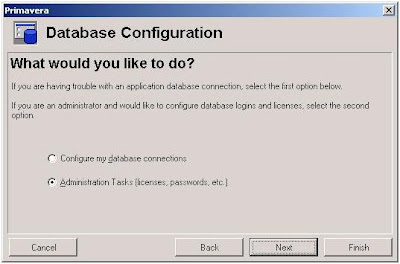
1. Select Start, Programs, Primavera, Help and Utilities, Database Configuration, select Next:



Office Live prohibits the CM server from recognizing Word on the client machines.
Primavera hasn't published it in the knowledge base yet.
Uninstalling Office Live and rebooting the server resolves the problem immediately. No need to re-install CM.
User does not have the Security Privileges for Checkin/Checkout status. |
User does not have the Security Privileges for Checkin/Checkout status when saving a Project in P6 Web. Can't add a WBS node in P6 Web. |
This known problem in P6 Web is currently under review and may be corrected in a future release. |
Providing Access to Expedition Information From Anywhere
Primavera Systems, Inc., the leading developer of enterprise and Web-based project management, control and execution software, announced the release of Primavera Expedition(R) Mobile.
This project control solution allows architectural, engineering and construction (AEC) firms to access project information anytime, anywhere through a Personal Digital Assistant (PDA) device running on the Palm OS(R) platform. Expedition Mobile allows remote team members to access and respond to key project information from the job site as events occur. Remote users can record deliveries, update contact information, initiate an RFI, and execute punch lists in the field with Expedition Mobile, eliminating illegible handwritten notes and reducing data entry. From the field, users can submit RFIs, automatically creating action lists to the appropriate project team member.
From a PDA device on the construction site, Expedition Mobile lets its users quickly and easily:
-- Record material tickets on the job site and synchronize to Expedition
-- Initiate RFIs from Expedition Mobile and synchronize to Expedition or Expedition Express
-- Manage Expedition Notepads and Punch Lists from the construction site
-- Access Expedition contact directory from the field Synchronize Expedition Action Lists to the PDA
-- Customize project data such as field labels and custom fields
Claudia Ledwich of H J Russell and Company says, "We need to get project information to the people in the field without re-keying the data. Expedition Mobile allows you to do just that--you can address RFIs, access contact information and capture delivery ticket information from anywhere. RFIs, punch lists and delivery ticket information can be synchronized back to Expedition. Expedition Mobile facilitates on-going communication regarding important project information to our on-site team members."
Expedition is the leading AEC project control solution. More than 100,000 users have benefited by using Expedition to improve project controls and manage change processes across multiple projects. Its capabilities include comprehensive contract management functionality, change management, multi-project analysis, as well as the ability to easily access meeting minutes, and view and log drawings. Expedition Mobile allows workers in the field to harness the power of Expedition in real-time, and is the newest addition to Primavera's Expedition suite of project control solutions.
"Unlike other mobile solutions, Expedition Mobile enables people on the job site to capture project information for multiple projects, which is ideal for large construction projects and programs," according to Primavera Systems, Inc. "With Expedition Mobile, data collection from the field is instantaneous and convenient. As wireless technology advances, so will Primavera's mobile offerings."
Primavera P6 does not officially support MS SQL 2008 yet, at least Primavera has stated that P6.2 does not support MS SQL 2008.


 Posts


